

 :
:
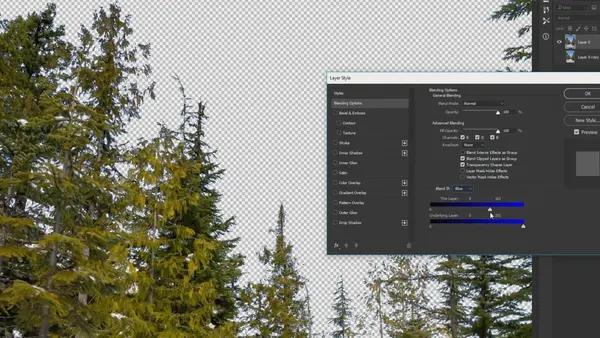
Free Download Dynamic masking is a powerful technique used in Photoshop, and one of the most effective ways to achieve this is by utilizing the "Blend-If" layer mode. This method offers a highly flexible approach to masking objects based on brightness or color values. In this guide, we'll dive deep into how to leverage this tool and show you how to apply the effect permanently, making your workflow more efficient and adaptable.
What is Dynamic Masking?
Dynamic masking, often used by professionals in the graphic design and photo manipulation industries, allows you to create masks based on the tones and colors within an image. The unique part of dynamic masking is that it's "live," meaning it continuously adjusts to any changes you make in your image. This ensures that your masks always stay aligned with the adjustments, making it a great tool for projects where flexibility is important.
Using the "Blend-If" Layer Mode in Photoshop:
The "Blend-If" feature in Photoshop is an incredibly useful tool for creating dynamic masks based on brightness and color. Here's how you can use it effectively:
1. Open Your Image: Start by opening your image in Photoshop.
2. Select the Layer: Choose the layer you wish to work on.
3. Apply the Blend-If Effect: In the Layers panel, double-click on the layer to open the Layer Style dialog. Use the "Blend-If" sliders to adjust the mask based on the brightness or color values of the layer.
4. Refine the Mask: Adjust the sliders to fine-tune the mask effect, ensuring it blends perfectly with the surrounding areas.
Making the Effect Permanent:
One important tip not covered in the video is how to make the effect permanent. After applying the "Blend-If" effect, follow these steps:
1. Create a New Blank Layer: Add a new blank layer on top of the layer that has the "Blend-If" applied.
2. Merge the Layers: Once the new blank layer is selected, merge the two layers. This will bake the dynamic mask effect into the layer permanently.
Why Use Dynamic Masking?
Dynamic masking is especially beneficial for projects that require adjustments throughout the editing process. It allows you to mask areas of an image dynamically, adjusting automatically as the image changes. This can be a huge time-saver and ensure that your masking stays precise and flexible throughout the workflow.
Conclusion:
Mattepaint's Dynamic Masking is a highly effective technique for Photoshop users looking to master advanced masking techniques. By utilizing the "Blend-If" layer mode and understanding how to apply the effect permanently, you can enhance your creative workflow, ensuring that your projects are both dynamic and accurate.
For a deeper dive, visit the [Mattepaint Dynamic Masking Tutorial](https://mattepaint.com/academy/tutorial/dynamic-masking/).
Category: Photoshop Tutorials
Links are Interchangeable - No Password - Single Extraction